Monday, 1 December 2014

Quick Review: Android 5.0 Lollipop @ Nexus 5

Hi guys, sorry about the long delay since the last post. Here, finally, is my review of Android 5.0 Lollipop on the Nexus 5 phone. You might notice that I'm specifying the device here. I'll write up a separate review for each device, namely the Nexus 5 and 7. The Nexus 7 review will focus on just the tablet-relevant bits, as well as any differences between my experience of Lollipop between these devices.

How It Looks...

Android 5.0 Lollipop brought a brand new design language known as Material Design. It's really about trying to make everything about using your device as natural and intuitive as possible. As such, there are now subtle shadows under certain elements, and the dark blue of Holo has been replaced by white and green.

Most of Google's own apps have been updated to incorporate this new design language, with excellent examples being the new Keep, Google+ and Gmail apps. Unfortunately, there are still a few Google apps that remain to be updated, with Hangouts being the most obvious example.

As regards the system apps, for instance the Dialler, all of these have been overhauled visually. There are loads of new animations and eye candy in these, with a very nice example being the animation when you make a call. The call button expands to become the overlay containing the in-call control options. Most of these animations are small and quite pointless, but they make the OS feel smooth and natural.

How It Feels...

Smoooooooth! For the most part that is indeed how it feels. In general apps load quickly, and there is little to no lag between touching the screen and something happening. One thing that does take a little getting used to is the new way in which dialogue boxes are laid out. Now, as opposed to the buttons being spread evenly across the bottom of the box, they are now all in the bottom right-hand corner, meaning that you have to relearn where you expect the options to be.


How It Disappoints...

Lollipop is prone to stutters and frequent force-closes. This is an issue which was not present in Android 4.4 KitKat. My problems begin with the fact that Chrome will often Force Close when I'm opening a link in a New Tab. The issue goes away if I disable the "Merge Tabs and Apps" option. This is a new feature in Lollipop where you can access your Chrome tabs using the Recents button, as opposed to having your tabs separate from your apps. This is an example of Google totally integrating into Android, but, if it worked without issue, I would have no problem with that.

The other problem I have is that Google+ will often fail to start if I try to launch it from the Recents view. I haven't properly looked into why that happens, but if I had to take a guess, I would blame poor or overly-aggressive memory management. This is where Android removes apps that have not been used in a while from memory. This issue has also been cited on the Nexus 9 by Android Police, so it's clear that there's some problem with Lollipop's memory manager. Hopefully a 5.0.1 or 5.1 update will fix both of my problems.

To Wrap It Up...

Those two bugs aside though, I'm quite happy with Lollipop on my Nexus 5. The new look is head and shoulders above Holo, and I hope that more major app developers get their apps updated to match. A lot of smaller app developers have already updated, but larger companies always seem to take their sweet time, probably due to testing.

Quite honestly I'm surprised that there haven't been any Lollipop maintenance updates for either the Nexus 5 or 7 since the original update landed. They definitely need a little bug fixing, particularly the Nexus 5.

Should I Upgrade...?

Yup, absolutely! Besides just the visual update, Lollipop introduces a huge amount of behind the scenes changes, making for a drastically improved user experience.


I'll release another post soon hopefully about the Nexus 7.

What do you guys think of the new font? Like? Dislike? Please vote, either on Google+, Facebook, or right here on the side!


Wednesday, 12 November 2014

Nexus Updates Galore

Hi guys!

Some of you with Nexus devices may have noticed that Google just uploaded the factory images for Android 5.0 Lollipop. All Nexus devices since the original Nexus 7 now have a means to update to the latest version of Android, with the exception of the Nexus 4. Hopefully this will be fixed soon.

Google is also pushing the OTA for the update, but it could be weeks or over a month before you ever see that hit your device. In this respect, the factory images are very useful, in that you can update your own device manually without waiting for Google. On the other hand, that means that any bugs in the new version won't have had a chance to be patched before you get your hands on the update.

As apologies for the delay since my last post, I'll post a review of Android 5.0 Lollipop for both the Nexus 5 and the Nexus 7 in the next few weeks.


Peace out!

Thursday, 23 October 2014

Quick Review: "Clariel"

As promised in my previous post, here’s my review of Garth Nix’s Clariel. In case you didn’t know, Garth Nix is an Australian author, who has written the popular The Old Kingdom Trilogy, and Shade’s Children, among other novels and series’.

Clariel marks Nix’s first return to the Old Kingdom since the novella The Creature in the Case, set six months after the conclusion of Abhorsen, the last book in the trilogy. Clariel plays the more difficult role of prequel, being set 600 years prior to the beginning of Sabriel and The Old Kingdom series. The very nature of a prequel, particularly in this case, is that unless you have read the main series, much of the impact of Clariel’s choices and actions may be lost on you.

As regards the series itself, the Old Kingdom is a world of magic, both good and evil. The two main types of magic are Charter Magic (generally used by the protagonists) and Free Magic (usually the weapon of choice for the antagonists). The Dead also feature strongly, as both mindless minions and more powerful, and more intelligent, monsters.


All throughout the original trilogy, Free and Charter Magic are seen as polar opposites, and it is stated again and again that Charter Magic is good, and that Free Magic is evil. In Clariel, all this is thrown into doubt. Clariel, our heroine, has little aptitude for, or interest in, Charter Magic, despite being a member of two families known for their strength in Charter Magic.

In a recent Q&A, Garth Nix stated that Clariel was given very little control over her own destiny, unlike Sabriel and Lirael, who were basically given free reign to follow a vague goal. Everything in Clariel's life is controlled by some outer force, be it her parents or her very situation. Her struggle for freedom leads her, seemingly inevitably, to Free Magic. The irony is evident in the fact that even though Free Magic is, by its very definition, free, Clariel's use of it does not lead her to greater freedom or happiness.

It is interesting to see how different the attitude of the residents of Belisaere in Clariel as opposed to the earlier novels. It is seen as the domain of servants and the lower classes, and not something for the upper classes to dirty their hands with. Even the Abhorsen, the man charged with keeping the Dead dead, shows little to no interest in his appointed task, and simply wastes his time at hunts.

Clariel features old favourites of the Old Kingdom series, such as Mogget. This sardonic feline plays a far more manipulative role than in previous books. The laxness of the Abhorsen, combined with other factors, bring his true nature as an ancient Free Magic creature far closer to the surface.

If you are a fan of the Old Kingdom series, then this is an absolute must-buy. If you're just a casual reader, then I would recommend reading the original Old Kingdom novels before Clariel. That way, you will fully appreciate the in-world relevance of Clariel. However, I think that the novel can certainly stand up on its own merit. In short, read it!


Sunday, 19 October 2014

A Long Overdue Update

Sorry it’s been such a long time since my last update, real life was a bit busy for a while. This post will be a little different, as event though there’s a lot happening in the world of Android, what with the announcement of Android 5.0 Lollipop and the Nexus 6, 9 and Player.

I’m going to wait for the official OTA update before reviewing Android 5.0, so I’ll be silent on the topic until around early to mid-November.

In the meantime, I’ll be posting a review of Garth Nix’s new book “Clariel.”


Stay tuned!


Sunday, 21 September 2014

How To Enable Student Mail On Android [NUIG Only] Part 2

Last week, I covered how to enable Student Mail through the stock Email client on Android. As you may remember, I didn't entirely recommend it, as this required the Email app to be given the permission to wipe your device without warning, among other things.

Happily, I've done some more research into the matter, and found a far better solution. Instead of creating a Corporate Exchange account, instead we'll create an IMAP account on the phone. This method requires no special permissions, and is just as functional as the previous method I covered. Unlike the other method, however, this only syncs your Email, and does not include your contacts or calendar from your Student Mail.

First, go to Settings, scroll down to Accounts, and tap "Add Account".


Then tap "IMAP".


Enter your Student Email address, and tap "Manual Setup". Then tap "IMAP".


Type in your password and proceed by tapping the arrow in the bottom right-hand corner.


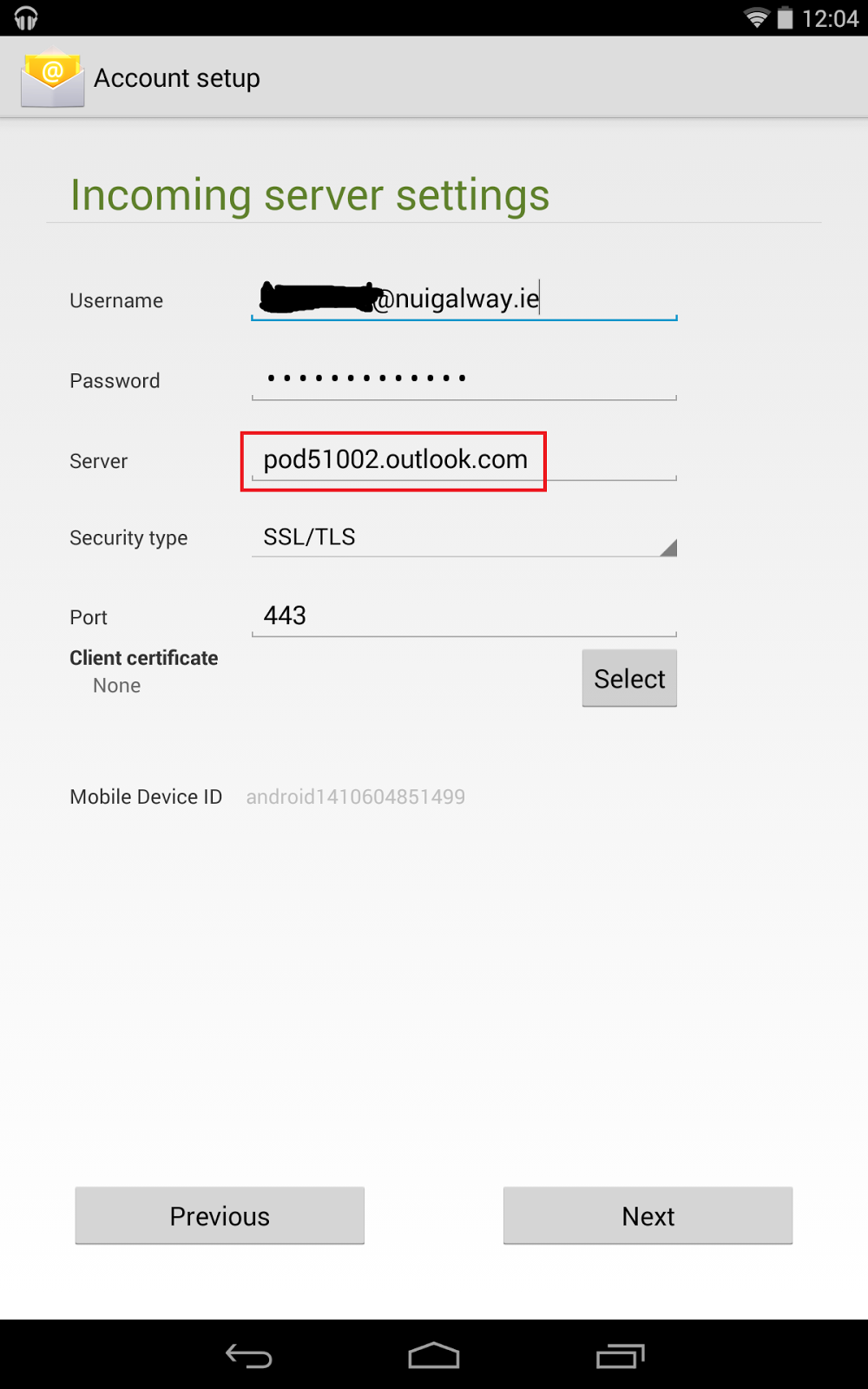
On the Incoming Server settings screen, change the server to "outlook.office365.com" as per the screenshot below. Set the security to "SSL/TLS", and make sure the port is 993. Tap the arrow in the bottom right-hand corner to continue.


Change the SMTP server to "smtp.office365.com", the security to "SSL/TLS", and the port to 993. Ensure the "Require sign-in" checkbox is unchecked.


That's it. You now have an Email app setup to sync with your Student Mail, with no ridiculous permissions whatsoever required. Enjoy!


Saturday, 13 September 2014

How To Enable Student Mail On Android [NUIG Only]

You may have found that the only way to access your Student Mail on mobile, particularly on Android, is through a desktop web page. Surely there has to be a better way to check your mail?

Good news folks, yes there is! This guide will show you how to use the stock Email app on Android with your Student Mail. However, be aware that this causes the Email app to need very excessive permissions, as you can see below.

If you don't want to give the Email server these permissions, check out my other guide here.


If you're OK with that, then we can proceed. You need to navigate to Settings - "Add Account" - Corporate. At this screen, type in your Student Mail login details, and tap "Next", and then "Exchange".

At the "Account setup" screen, change the "Server" address to "pod51002@outlook.com". Then tap "Next".


Before editing


After editing

You will then be prompted about "Remote security administration". You need to accept this to enable Student Mail using the Email app.

Decide how, when, and what you want to notified about, and tap "Next". If you want, you can then name the account, This is completely optional. Tap "Next".

You will then be prompted to activate the Email app as a device administrator, which is where you can see how excessive the required permissions are. Assuming this is acceptable to you, scroll to the bottom of the permissions and tap "Activate".

That's it! You can now check your Student Mail through the stock Email app.


Sunday, 17 August 2014

Quick Review: Google+

For the purposes of this review, I'll be focusing on the web and Android versions of Google+, as opposed to iOS, mostly because I don't have an iDevice.

Ask most Facebook users about Google+ and they will either not know anything about it, or will call it a "ghost town." A similar attitude is seen in the media. The vast majority of people don't know anything about Google+, and instantly dismiss it for that very reason. However, those of us who do use Google+ tell a very different story.

In general, posts in my Facebook feed usually consist of pictures from nights out and other such pictures. Whereas in my G+ feed I have loads of links to articles on other websites, as well as posts on the social network itself. Re-sharing posts seems to be a lot more important on G+ as well. A lot of what you see in your feed are re-shared posts, as opposed to originals.

G+ has full integration with Google's other services, and this is very prominent in G+'s Photos section. You can save all your photos to Google's servers, with two quality options. You have a choice between saving them at full resolution and saving them to your Google Drive, eating into your cloud storage, or you can store an unlimited number of photos at 2048 px. The Photos app, installed as part of the Google+ app, allows Android users to manage their G+ Photos. It also supports casting your photos to Chromecast and, probably, Android TV.

Communities are places where people of similar interests can congregate and chat, sharing pictures, advice or similar as appropriate.Regardless of what you're interested in, there is probably a Community or two on G+ that suits you perfectly. Posts from the Communities that you are a member of show up in your Feed. Naturally some of these communities can become clogged up with spam, flaming or other things that you don't want to see, so you'll be glad to hear that you can control how often you see posts from Communities, or indeed whether you see any posts at all.

You don't have a Friend List per se on G+, instead you organise your friends into Circles. For instance, by default I believe you have a Following Circle, which is where you put people you want to Follow, celebrities for example. It's also easy to share posts with specific Circles. You can also view posts from only one particular Circle. This is just one place where G+ gives you a lot more control over your posts than Facebook.

Google+ gives people a chance to meet new and interesting people. It's often said that Facebook is useful for keeping in touch with people you know or met once, while Google+ allows you to meet new people, if only by virtue of the fact that the people you normally chat to on Facebook simply aren't on Google+.

What do you think? What do you use Google+ for? Feel free to leave a comment below.