Thursday, 23 October 2014

Quick Review: "Clariel"

As promised in my previous post, here’s my review of Garth Nix’s Clariel. In case you didn’t know, Garth Nix is an Australian author, who has written the popular The Old Kingdom Trilogy, and Shade’s Children, among other novels and series’.

Clariel marks Nix’s first return to the Old Kingdom since the novella The Creature in the Case, set six months after the conclusion of Abhorsen, the last book in the trilogy. Clariel plays the more difficult role of prequel, being set 600 years prior to the beginning of Sabriel and The Old Kingdom series. The very nature of a prequel, particularly in this case, is that unless you have read the main series, much of the impact of Clariel’s choices and actions may be lost on you.

As regards the series itself, the Old Kingdom is a world of magic, both good and evil. The two main types of magic are Charter Magic (generally used by the protagonists) and Free Magic (usually the weapon of choice for the antagonists). The Dead also feature strongly, as both mindless minions and more powerful, and more intelligent, monsters.


All throughout the original trilogy, Free and Charter Magic are seen as polar opposites, and it is stated again and again that Charter Magic is good, and that Free Magic is evil. In Clariel, all this is thrown into doubt. Clariel, our heroine, has little aptitude for, or interest in, Charter Magic, despite being a member of two families known for their strength in Charter Magic.

In a recent Q&A, Garth Nix stated that Clariel was given very little control over her own destiny, unlike Sabriel and Lirael, who were basically given free reign to follow a vague goal. Everything in Clariel's life is controlled by some outer force, be it her parents or her very situation. Her struggle for freedom leads her, seemingly inevitably, to Free Magic. The irony is evident in the fact that even though Free Magic is, by its very definition, free, Clariel's use of it does not lead her to greater freedom or happiness.

It is interesting to see how different the attitude of the residents of Belisaere in Clariel as opposed to the earlier novels. It is seen as the domain of servants and the lower classes, and not something for the upper classes to dirty their hands with. Even the Abhorsen, the man charged with keeping the Dead dead, shows little to no interest in his appointed task, and simply wastes his time at hunts.

Clariel features old favourites of the Old Kingdom series, such as Mogget. This sardonic feline plays a far more manipulative role than in previous books. The laxness of the Abhorsen, combined with other factors, bring his true nature as an ancient Free Magic creature far closer to the surface.

If you are a fan of the Old Kingdom series, then this is an absolute must-buy. If you're just a casual reader, then I would recommend reading the original Old Kingdom novels before Clariel. That way, you will fully appreciate the in-world relevance of Clariel. However, I think that the novel can certainly stand up on its own merit. In short, read it!


Sunday, 19 October 2014

A Long Overdue Update

Sorry it’s been such a long time since my last update, real life was a bit busy for a while. This post will be a little different, as event though there’s a lot happening in the world of Android, what with the announcement of Android 5.0 Lollipop and the Nexus 6, 9 and Player.

I’m going to wait for the official OTA update before reviewing Android 5.0, so I’ll be silent on the topic until around early to mid-November.

In the meantime, I’ll be posting a review of Garth Nix’s new book “Clariel.”


Stay tuned!


Sunday, 21 September 2014

How To Enable Student Mail On Android [NUIG Only] Part 2

Last week, I covered how to enable Student Mail through the stock Email client on Android. As you may remember, I didn't entirely recommend it, as this required the Email app to be given the permission to wipe your device without warning, among other things.

Happily, I've done some more research into the matter, and found a far better solution. Instead of creating a Corporate Exchange account, instead we'll create an IMAP account on the phone. This method requires no special permissions, and is just as functional as the previous method I covered. Unlike the other method, however, this only syncs your Email, and does not include your contacts or calendar from your Student Mail.

First, go to Settings, scroll down to Accounts, and tap "Add Account".


Then tap "IMAP".


Enter your Student Email address, and tap "Manual Setup". Then tap "IMAP".


Type in your password and proceed by tapping the arrow in the bottom right-hand corner.


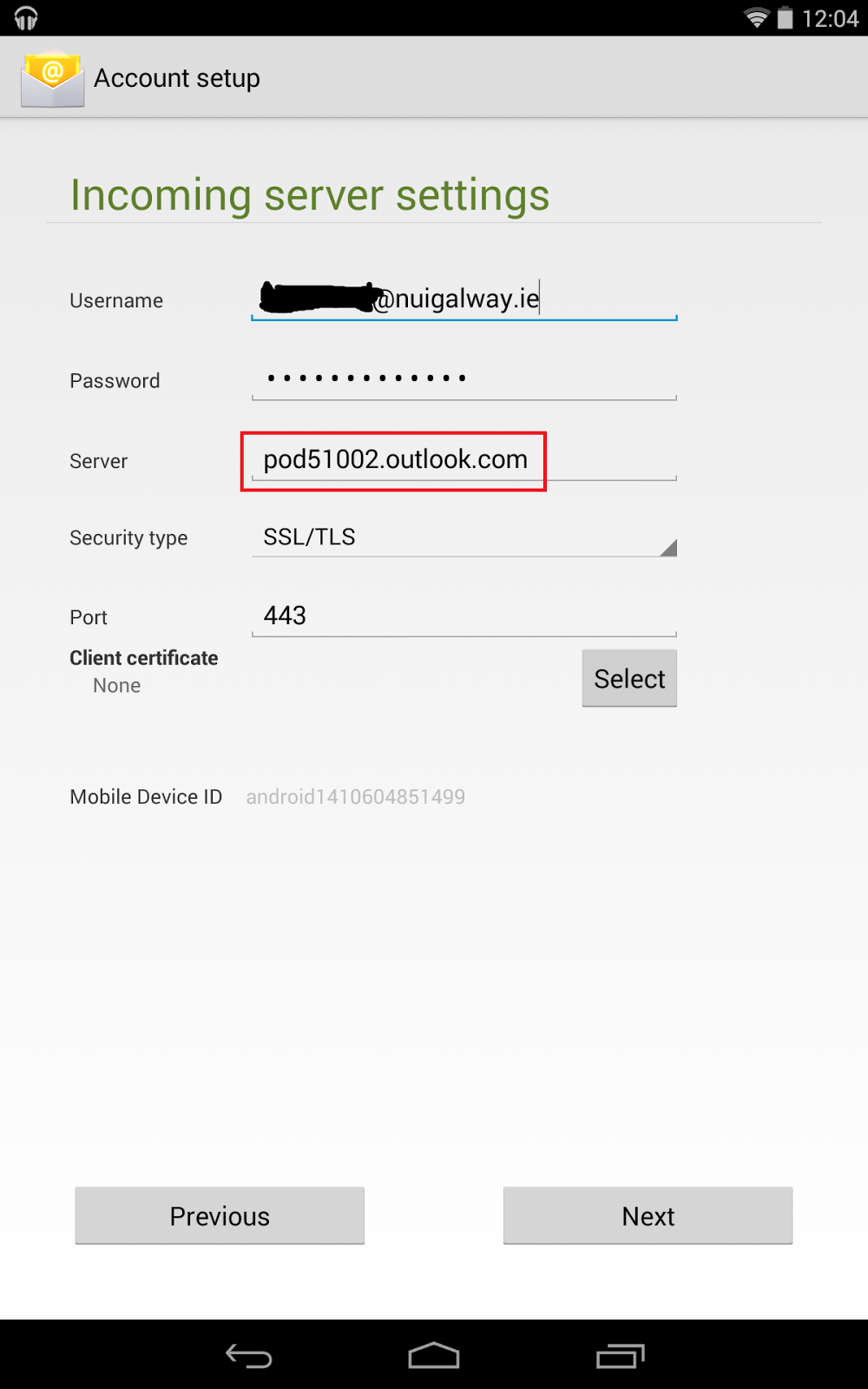
On the Incoming Server settings screen, change the server to "outlook.office365.com" as per the screenshot below. Set the security to "SSL/TLS", and make sure the port is 993. Tap the arrow in the bottom right-hand corner to continue.


Change the SMTP server to "smtp.office365.com", the security to "SSL/TLS", and the port to 993. Ensure the "Require sign-in" checkbox is unchecked.


That's it. You now have an Email app setup to sync with your Student Mail, with no ridiculous permissions whatsoever required. Enjoy!


Saturday, 13 September 2014

How To Enable Student Mail On Android [NUIG Only]

You may have found that the only way to access your Student Mail on mobile, particularly on Android, is through a desktop web page. Surely there has to be a better way to check your mail?

Good news folks, yes there is! This guide will show you how to use the stock Email app on Android with your Student Mail. However, be aware that this causes the Email app to need very excessive permissions, as you can see below.

If you don't want to give the Email server these permissions, check out my other guide here.


If you're OK with that, then we can proceed. You need to navigate to Settings - "Add Account" - Corporate. At this screen, type in your Student Mail login details, and tap "Next", and then "Exchange".

At the "Account setup" screen, change the "Server" address to "pod51002@outlook.com". Then tap "Next".


Before editing


After editing

You will then be prompted about "Remote security administration". You need to accept this to enable Student Mail using the Email app.

Decide how, when, and what you want to notified about, and tap "Next". If you want, you can then name the account, This is completely optional. Tap "Next".

You will then be prompted to activate the Email app as a device administrator, which is where you can see how excessive the required permissions are. Assuming this is acceptable to you, scroll to the bottom of the permissions and tap "Activate".

That's it! You can now check your Student Mail through the stock Email app.


Sunday, 17 August 2014

Quick Review: Google+

For the purposes of this review, I'll be focusing on the web and Android versions of Google+, as opposed to iOS, mostly because I don't have an iDevice.

Ask most Facebook users about Google+ and they will either not know anything about it, or will call it a "ghost town." A similar attitude is seen in the media. The vast majority of people don't know anything about Google+, and instantly dismiss it for that very reason. However, those of us who do use Google+ tell a very different story.

In general, posts in my Facebook feed usually consist of pictures from nights out and other such pictures. Whereas in my G+ feed I have loads of links to articles on other websites, as well as posts on the social network itself. Re-sharing posts seems to be a lot more important on G+ as well. A lot of what you see in your feed are re-shared posts, as opposed to originals.

G+ has full integration with Google's other services, and this is very prominent in G+'s Photos section. You can save all your photos to Google's servers, with two quality options. You have a choice between saving them at full resolution and saving them to your Google Drive, eating into your cloud storage, or you can store an unlimited number of photos at 2048 px. The Photos app, installed as part of the Google+ app, allows Android users to manage their G+ Photos. It also supports casting your photos to Chromecast and, probably, Android TV.

Communities are places where people of similar interests can congregate and chat, sharing pictures, advice or similar as appropriate.Regardless of what you're interested in, there is probably a Community or two on G+ that suits you perfectly. Posts from the Communities that you are a member of show up in your Feed. Naturally some of these communities can become clogged up with spam, flaming or other things that you don't want to see, so you'll be glad to hear that you can control how often you see posts from Communities, or indeed whether you see any posts at all.

You don't have a Friend List per se on G+, instead you organise your friends into Circles. For instance, by default I believe you have a Following Circle, which is where you put people you want to Follow, celebrities for example. It's also easy to share posts with specific Circles. You can also view posts from only one particular Circle. This is just one place where G+ gives you a lot more control over your posts than Facebook.

Google+ gives people a chance to meet new and interesting people. It's often said that Facebook is useful for keeping in touch with people you know or met once, while Google+ allows you to meet new people, if only by virtue of the fact that the people you normally chat to on Facebook simply aren't on Google+.

What do you think? What do you use Google+ for? Feel free to leave a comment below.

Saturday, 2 August 2014

Quick App Review: Lux Auto Brightness

Most smartphones these days come with some form of Auto-Brightness, allowing the display to get brighter or dimmer depending on the ambient light. In practical terms, it gets brighter outside and dimmer inside.

However, the problem is, the automatic brightness on most phones, particularly those running stock or close to stock Android, isn't all that smart, and can take a while to adapt, and in some cases doesn't adapt enough.

The solution, therefore, is to use a smarter form of Auto-Brightness. Some OEMs such as Samsung and HTC use Adaptive Brightness on their phones, which allows the user to set a brightness, but the screen can still adjust the brightness somewhat. And what about the rest of us, who don't have this Adaptive Brightness? Luckily, there are apps that can be used for just this purpose. One such app is Lux Auto Brightness.

Although it is a little complex to set up, it is well worth the work. You can set what brightness you want the screen to be at for any ambient light level, and you can even set the screen to a lower brightness than the phone can set it to itself. There also tends to be far fewer sudden jumps in brightness.

The app is paid, although there is a free version with a few restrictions. The app is well worth the purchase, if only to support the developer.

Do any of you guys use other brightness managers on your smartphones? Feel free to leave a comment!


Links:
Lux Lite
Lux Auto Brightness

Tuesday, 22 July 2014

Looking For a New Smartphone? July 2014

Some of you may be bored with your current phone, and looking to get a new one. Maybe your current phone is old, or your contract allows you to get a new phone soon. If you are in the market for a phone, I think that you should know what's the best of what's out there at this moment in time.

Many of you are constrained by budget, especially if you are buying a pre-paid device. I don't know a whole lot about contracts, or the way buying devices works in those situations, so I'll be working mostly off the assumption that you are buying an unlocked device, or buying a pre-paid phone from your carrier. I'll also avoid deals on eBay, Amazon, or any other similar outlet.

Under €150:

When looking at smartphones in this bracket, you are usually looking at phones branded by the carrier themselves. Honestly, if you are looking for the best User Experience, the best phone within budget is the Moto E, available from Expansys for €122.99 at time of writing.

Other viable options include the Sony Xperia E1, Nokia Lumia 635, HTC Desire 310, and the Vodafone Smart 4 Turbo.

€150 - €250:
Maybe you want a slightly more upmarket device that won't break the bank. As regards User Experience, you want the Moto G, also available from Expansys for between €180.99 and €214.99. Motorola have proven themselves to be excellent at providing a smooth, consistent UX, dominating the bottom end of the market.

Other good options at this bracket include the Sony Xperia SP, LG G2 Mini, and the Samsung Galaxy Ace 3. Some of these phones may be within budget only if bought from a carrier.

€250 - €400:

There are several excellent phones available within this bracket. Admittedly many of them are at the top-end of this bracket, but they are excellent choices. The best phone on the market for User Experience is the Google Nexus 5. This is available from €349.99 from Google Play.

The best Small Phone available is the Sony Xperia Z1 Compact, available from Vodafone for €349.99. It has largely the same specs as the Sony Xperia Z1, but it has a smaller screen, which users with smaller hands will appreciate.

Other strong devices in this category include the OPPO Find 7a, which I recently reviewed URL[here], Apple iPhone 4s (refurbished, available from Expansys), Nokia Lumia 925, and the HTC Desire 816. Again, some of these may only be in budget from your carrier.

€400 +:

This is flagship smartphone territory, so really this is simply a comparison of the current flagships from the major manufacturers, and a minor one too. Most of these flagships have one or two USPs (unique selling points), so that's what I'll focus. Really, most of the flagships are pretty identical, having the same amount of RAM, more or less, the same processor, similar cameras, and they nearly all run Android 4.4 KitKat.

The HTC One (M8)'s claim to fame is its aluminium construction, as well as its BoomSound speakers. The Sony Xperia Z2 boasts the best camera on the market. LG's G3 is the first QHD (2560x1440) resolution screen from a mainstream manufacturer, and also has the best screen-to-bezel ratio, with 76.4% of the phone's front covered by the screen. The Samsung Galaxy S5 has a great deal of health related features, such as a heart-rate monitor. Finally, the OPPO Find 7 has the title of first QHD phone overall, and also equals most of its competitors on specs, at a sizeable discount, costing just €479 compared to ~€630 for any of the other flagships.

The iPhone 5C and 5S also feature in this budget, but honestly, based on specs, I can't recommend them, as they are completely outclassed by any of the phones mentioned above. However, if you don't want an Android handset but do want a premium phone, the iPhone 5S is probably what you want.


Hopefully that should clarify the daunting task of making your choice for those of you looking at buying a new phone. Feel free to leave a comment below, and thanks for reading.